6 · Demo — Federate OCI with Microsoft Entra ID
These are original revision notes for the identity-federation demo video. They walk through the configuration in our own words rather than reproducing the recording.
Core message
Out of the box, an OCI identity domain signs users in with a local username and password. Federation lets those users sign in with their Microsoft Entra ID (formerly Azure Active Directory) credentials instead. The configuration is a two-sided SAML trust: OCI hands its SAML metadata to Entra, Entra hands its federation metadata back to OCI, and each side is told to trust the other. The visible payoff is a new Sign in with Microsoft Entra ID button on the OCI sign-in page.
How the federation flow works
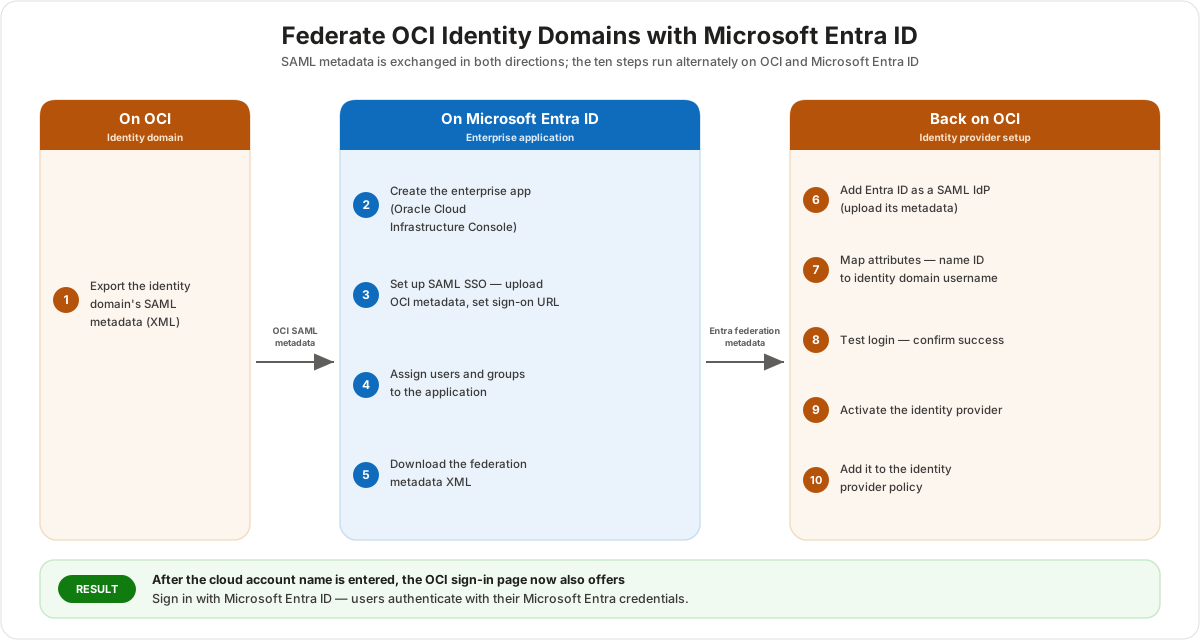
The work alternates between the two portals and exchanges metadata in both directions. OCI is configured as the service provider (the application users sign in to), and Microsoft Entra ID is configured as the identity provider (where the sign-in actually happens). Because the flow is service-provider–initiated, a user starting at the OCI sign-in page is redirected to Entra to authenticate and then returned to the OCI console.
The ten steps
The steps group into three phases: prepare OCI, configure Entra, then come back and finish OCI.
Phase 1 — On OCI (prepare)
- Export the identity domain's SAML metadata. In the OCI identity domain, download the SAML metadata document. This XML file describes OCI as the service provider and is what Entra needs to trust it.
Phase 2 — On Microsoft Entra ID (configure the identity provider)
- Create the enterprise application. Add the Oracle Cloud Infrastructure Console application from the Entra gallery. This represents OCI inside Entra.
- Set up SAML single sign-on. Upload the OCI SAML metadata from step 1, then set the sign-on URL to the OCI console URL (it ends in
/ui/v1/myconsole). The identifier (entity ID), reply URL, and logout URL populate from the uploaded metadata. - Assign users and groups. Grant access to the enterprise application for the users and groups who should be allowed to sign in to OCI through Entra.
- Download the federation metadata XML. From the SAML signing-certificate section, download the Entra federation metadata. This XML describes Entra as the identity provider and is what OCI needs to trust it.
Phase 3 — Back on OCI (finish and turn it on)
- Add Microsoft Entra ID as a SAML identity provider. In the identity domain, add a new SAML identity provider and upload the Entra federation metadata from step 5.
- Map the attributes. Map the Entra name ID to the OCI identity domain username. The claim is
user.principalnamewith the name-ID format set to email address, so each Entra user is matched to the OCI user whose username equals that value. - Test the login. Use the built-in test to confirm the connection succeeds before exposing it to users.
- Activate the identity provider. A newly added identity provider is inactive; activate it so it can be used.
- Add it to the identity provider policy. Add the activated provider to the identity domain's Default sign-in policy. Only then does the new option appear on the sign-in page.
What changes on the sign-in page
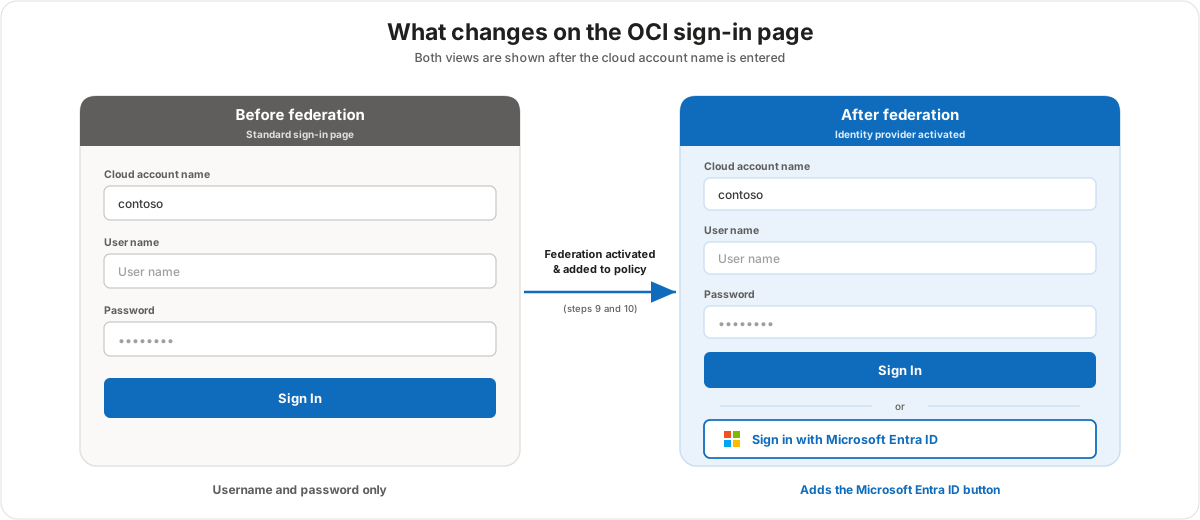
The whole point of the demo is the before-and-after on the OCI sign-in page. Before federation, once the cloud account name is entered the page offers only a username and password. After the identity provider is activated and added to the sign-in policy, the same page also offers Sign in with Microsoft Entra ID, which redirects the user to Microsoft Entra to authenticate and then back to the OCI console.
The matching-user requirement
Federation matches identities by name, not by magic. Because the name-ID claim is user.principalname mapped to the OCI username, a user can only sign in if a matching account exists on both sides: the OCI identity domain username must equal the Microsoft Entra userPrincipalName. If the names don't line up, authentication succeeds at Entra but fails to land on an OCI user. In practice this means provisioning (or aligning) the users on both sides before testing.
Customer value
- Users sign in to OCI with the same Microsoft Entra credentials they already use, so there is no separate OCI password to manage.
- Centralizing authentication in Entra brings OCI under the same conditional access, MFA, and lifecycle controls the customer already runs.
- Group assignment is handled in Entra, which fits the wider Oracle Database@Azure model where Azure groups are replicated into OCI.
- The change is additive — the local username-and-password option remains, so federation can be introduced without locking anyone out.
Risks and constraints to remember
- Order matters. A SAML identity provider does nothing until it is both activated (step 9) and added to the sign-in policy (step 10); skipping either leaves the button off the page.
- Identities must match. A user with no matching OCI username — or whose username differs from their Entra userPrincipalName — cannot complete sign-in.
- Metadata is exchanged both ways. Forgetting either direction (OCI metadata into Entra, or Entra metadata into OCI) breaks the trust.
- Sign-on URL must be exact. The enterprise application's sign-on URL has to be the OCI console URL ending in
/ui/v1/myconsolefor the service-provider–initiated flow to work. - Test before exposing. Use the identity provider test (step 8) before adding it to the policy so a misconfiguration doesn't reach real users.
Terms to remember
- SAML metadata — an XML document that describes one side of the trust (OCI as service provider, or Entra as identity provider) so the other side can trust it.
- Service provider (SP) — the application users sign in to; here, OCI.
- Identity provider (IdP) — where authentication happens; here, Microsoft Entra ID.
- Enterprise application — the Entra-side representation of OCI ("Oracle Cloud Infrastructure Console").
- Single sign-on (SSO) — signing in once at the identity provider to reach the application.
- Name ID claim — the attribute (
user.principalname, email format) that identifies the user across the trust and maps to the OCI username. - Sign-on URL — the OCI console URL ending in
/ui/v1/myconsoleset on the enterprise application. - Identity provider policy — the identity domain's sign-in policy (Default) that controls which providers appear on the sign-in page.
- Activation — switching a newly added identity provider from inactive to active.
- SP-initiated SSO — a sign-in that starts at the service provider (OCI) and is redirected to the identity provider (Entra).
"Federation lets your people sign in to Oracle Database@Azure with the same Microsoft Entra ID they already use — no extra Oracle password. We set up a two-way SAML trust: OCI shares its metadata with Entra, Entra shares its metadata back, and we match each user by their sign-in name. Once we activate it and add it to the sign-in policy, your team sees a 'Sign in with Microsoft Entra ID' button, and everything stays under your existing Entra security controls."