1 · Microsoft Entra ID
These are original revision notes for the Microsoft Entra ID lesson that opens the Azure Identity and Networking module. They explain, in our own words, what Microsoft Entra ID is, what a tenant is, and the capability areas it covers — rather than reproducing the recording.
Core message
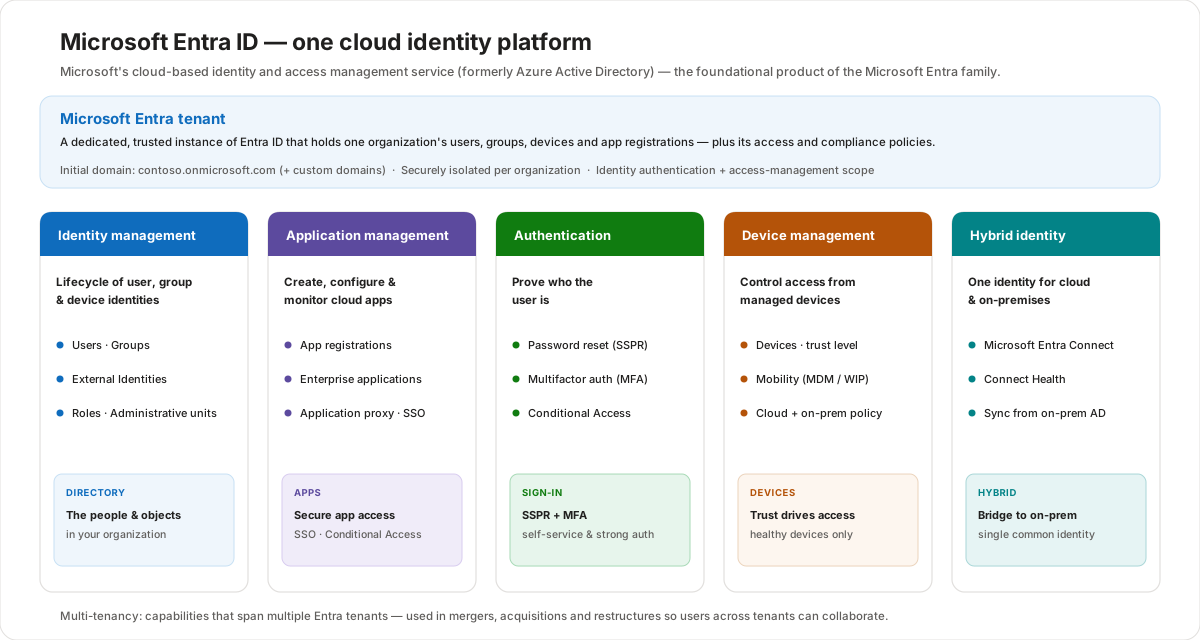
Microsoft Entra ID is Microsoft's cloud-based identity and access management service (formerly Azure Active Directory). It is the foundational product of the Microsoft Entra family, and it is what your employees use to sign in and reach resources — external ones like Microsoft 365, the Azure portal, and thousands of SaaS apps, and internal ones like corporate-intranet apps and your own custom cloud apps. Everything an organization owns in Entra ID — users, groups, devices, and app registrations — lives inside a tenant, a dedicated and trusted instance of the service. Around that tenant, Entra ID groups its work into a few capability areas: identity management, application management, authentication, device management, and hybrid identity. If you already subscribe to Microsoft 365, Azure, or Dynamics, you already have an Entra tenant.
What Microsoft Entra ID is
Microsoft Entra ID is a cloud-based identity and access management (IAM) service. Its job is to authenticate a user or workload (prove who they are) and then authorize access (decide what they can reach), for resources that live both inside and outside Azure.
- It is the identity backbone behind Microsoft cloud services — Microsoft 365, Azure, and Dynamics all use Entra ID for sign-in.
- It also secures third-party SaaS apps and your own line-of-business apps, whether those run in the cloud or on a corporate intranet.
- Every new Entra directory gets an initial domain name like
contoso.onmicrosoft.com, and you can add your organization's custom domain names (for examplecontoso.com). - It is the renamed continuation of Azure Active Directory — the capabilities are the same identity service under the Microsoft Entra brand.
A quick clarification that often confuses people: Microsoft Entra ID is not the same thing as on-premises Active Directory (AD DS). AD DS is a directory service for a Windows domain; Entra ID is a cloud IAM service for web and SaaS apps. The two are designed to work together through hybrid identity, which we cover below.
The tenant
A tenant is an instance of Microsoft Entra ID in which a single organization's information resides. It holds the organization's directory objects and the policies that govern them.
- What lives in a tenant — organizational objects such as users, groups, and devices, plus application registrations (Microsoft 365 and third-party apps), and the access and compliance policies for those resources.
- What a tenant is for — it forms an identity and access-management scope. Its two primary jobs are identity authentication and resource access management. An administrator makes an app available to some or all users in the tenant and enforces access policies for those users.
- Isolation — tenants contain privileged organizational data and are securely isolated from other tenants. Users in one tenant can collaborate easily with each other but can't see users in other tenants.
- Data residency — a tenant can be configured so its data is persisted and processed in a specific region or cloud, which is how organizations use tenants to meet data-residency and compliance requirements.
- Relationship to subscriptions — a directory can have many subscriptions associated with it, but an Azure subscription trusts only one tenant at a time.
Multi-tenancy
Multi-tenancy describes interactions and capabilities that span more than one Entra tenant.
- Organizations end up with multiple tenants after mergers, acquisitions, or restructuring into new business units.
- When identity is spread across disparate tenants, it becomes harder for users in different tenants to access resources and collaborate.
- Entra ID's multi-tenant organization capabilities (and features such as cross-tenant synchronization) exist to make that cross-tenant access and collaboration work smoothly.
For the exam, hold onto the contrast: a tenant is one organization's isolated instance; multi-tenancy is about working across several such instances.
The five capability areas
Entra ID organizes what it does into a handful of capability areas. Each one lines up with sections you see in the Microsoft Entra admin center "Manage" blade.
Identity management
This is the service that manages the lifecycle of user, group, and device identities — creating them, keeping them current, and removing them.
- Manage Users, Groups, and External Identities (guests and partners).
- Organize and delegate with Administrative units and assign Roles and administrators.
- Govern access over time with Identity Governance (access reviews, entitlement management).
- Drive it through the portal or the Microsoft Graph API to fit existing workflows and automation.
Application management
Application management is the process of creating, configuring, managing, and monitoring applications in the cloud. Once an app is registered in the tenant, assigned users can sign in to it securely.
- Register apps under App registrations and publish them as Enterprise applications.
- Provide single sign-on (SSO), automated user provisioning, and Conditional Access.
- Reach on-premises web apps without a VPN using Application proxy.
- The lifecycle runs develop/add/connect → manage access → configure properties → secure → govern and monitor → clean up.
Authentication
Authentication is how Entra ID proves who the user is before granting access.
- Self-service password reset (SSPR) lets users change or reset their own passwords — included even in the Free tier for cloud users (configured under Password reset).
- Multifactor authentication (MFA) requires a second proof of identity beyond the password.
- Conditional Access evaluates signals (user, device, location, risk) and decides whether to allow, block, or step up the sign-in.
Device management
Device management uses Entra ID to manage the lifecycle and integration of devices with cloud and on-premises device-management infrastructure, and to control access from those devices to organizational data.
- Register and manage devices under Devices, and use Mobility (MDM and WIP) to connect mobile device management and Windows Information Protection.
- Provide the credential provisioning that lets a device authenticate.
- Track a key device attribute — its level of trust — which is central when you design a resource-access policy (for example, only compliant or hybrid-joined devices may reach sensitive data).
Hybrid identity
Hybrid identity gives a user one identity that works for both on-premises and cloud resources, by extending an existing on-premises directory into Entra ID.
- Microsoft Entra Connect connects the on-premises identity infrastructure to Entra ID and handles provisioning, deprovisioning, and updates of those identities.
- Your on-premises Active Directory stays the authoritative source; changes flow up to the cloud.
- Microsoft Entra Connect Health monitors the on-premises identity infrastructure and surfaces alerts, performance, and usage in one place.

Microsoft Entra Connect and Connect Health
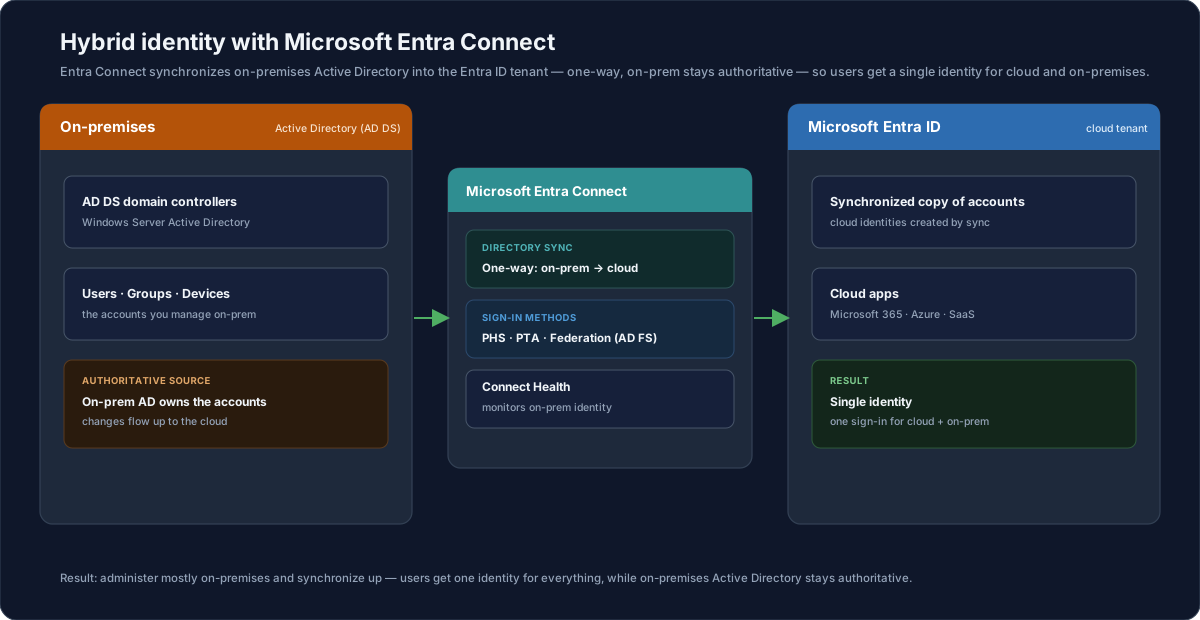
Microsoft Entra Connect is the tool that integrates on-premises directories with Entra ID, so users get a common identity for both cloud and on-premises resources. It replaces older integration tools such as DirSync and Azure AD Sync.
Its main features:
- Synchronization — creates and keeps users, groups, and other objects matching between AD and the cloud, including password hashes. By default all users, contacts, groups, and Windows 10 computers sync; you can filter by domain, OU, or attribute.
- Password hash synchronization (PHS) — syncs a hash of the on-premises password so the user signs in to the cloud with the same password, managed in one place; Entra ID performs the authentication.
- Pass-through authentication (PTA) — the same password works on-premises and in the cloud, but AD DS performs the authentication without the extra infrastructure of federation.
- Federation integration — optional path that uses an on-premises AD FS infrastructure, with management capabilities like certificate renewal.
- Health monitoring — Microsoft Entra Connect Health provides robust monitoring of the on-premises identity components from a central place in the Entra admin center.
The directional rule to remember: on-premises AD is authoritative, you do most administration there, and changes are synchronized one way into Entra ID so license assignment, group management, and permissions can be done in the cloud.
Inside the "Manage" blade
The capability areas map directly onto what you click in the Microsoft Entra admin center. A useful way to memorize the blade is to group its items under the five capabilities:
| Capability | "Manage" blade items |
|---|---|
| Identity management | Users · Groups · External Identities · Roles and administrators · Administrative units · Identity Governance · Custom security attributes |
| Application management | Enterprise applications · App registrations · Application proxy · Delegated admin partners |
| Authentication | Password reset (SSPR) · User settings |
| Device management | Devices · Mobility (MDM and WIP) |
| Hybrid identity | Microsoft Entra Connect · Cross-tenant synchronization · Custom domain names |
| Tenant settings | Licenses · Company branding |
Don't memorize the blade as a flat list — anchor each item to the capability it serves, and the menu becomes predictable.
Editions: Free, P1, and P2
Entra ID ships in three editions, each a superset of the one before it.
| Edition | What it adds |
|---|---|
| Free | User and group management, on-premises directory synchronization, basic reports, self-service password change for cloud users, and single sign-on across Azure, Microsoft 365, and many SaaS apps. |
| P1 | Everything in Free, plus hybrid users accessing on-premises and cloud resources, dynamic groups, self-service group management, Microsoft Identity Manager, and cloud write-back (self-service password reset/writeback for on-premises users). |
| P2 | Everything in P1, plus Microsoft Entra ID Protection (risk-based Conditional Access) and Privileged Identity Management (PIM). |
A simple way to remember the split: Free = basics + SSO, P1 = hybrid + self-service at scale, P2 = risk and privileged-access protection.
Customer value
- One identity platform — the same service signs users in to Microsoft 365, Azure, SaaS, and custom apps, instead of a separate identity store per app.
- Tenant isolation with data residency — each organization's directory is securely isolated and can be pinned to a region to meet compliance needs.
- Hybrid continuity — Entra Connect gives users a single identity across on-premises and cloud, so they don't manage two passwords.
- Stronger sign-in — SSPR and MFA reduce password-related risk and helpdesk load, and Conditional Access enforces it based on real signals.
- Trust-aware access — device trust level feeds access policy, so only healthy or managed devices reach sensitive data.
- Grows with the org — multi-tenant and cross-tenant features keep identity workable through mergers and restructures.
Risks and constraints to remember
- Entra ID is not on-premises AD DS — don't conflate the cloud IAM service with a Windows-domain directory service; they integrate through hybrid identity but are different things.
- A subscription trusts one tenant at a time — moving a subscription between tenants is a deliberate change, not a casual one.
- Hybrid identity needs Entra Connect — you always sync accounts with Entra Connect to get the cloud copies needed for licensing, groups, and permissions.
- On-premises stays authoritative in hybrid — most changes flow one way (AD → cloud); plan administration accordingly.
- Capabilities are edition-gated — risk-based Conditional Access, PIM, dynamic groups, and password writeback require P1 or P2; confirm licensing before promising them.
- Tenant data residency is set up, not assumed — verify the region/cloud configuration when a customer has data-handling requirements.
Terms to remember
- Microsoft Entra ID — Microsoft's cloud-based identity and access management service (formerly Azure Active Directory); the foundational product of the Microsoft Entra family.
- Tenant — a dedicated, trusted instance of Entra ID holding one organization's users, groups, devices, app registrations, and policies; the identity and access-management scope.
- Multi-tenancy — interactions and capabilities that span multiple Entra tenants (e.g. after mergers or acquisitions).
- Initial domain / custom domain — every directory gets a
*.onmicrosoft.cominitial domain; custom domains likecontoso.comcan be added. - Identity management — lifecycle management of user, group, and device identities (Users, Groups, External Identities, Roles, Administrative units).
- Application management — creating, configuring, managing, and monitoring cloud apps (App registrations, Enterprise applications, Application proxy, SSO).
- Authentication — proving identity via SSPR and MFA, enforced with Conditional Access.
- Device management — managing device identities and their trust level to control access to organizational data (Devices, Mobility / MDM and WIP).
- Hybrid identity — one user identity for both on-premises and cloud resources, delivered by Microsoft Entra Connect.
- Microsoft Entra Connect — the tool that synchronizes on-premises AD into Entra ID (PHS, PTA, federation, synchronization, health monitoring); replaces DirSync and Azure AD Sync.
- Microsoft Entra Connect Health — monitoring of the on-premises identity infrastructure surfaced centrally in the Entra admin center.
- PHS / PTA / Federation — the three hybrid sign-in methods: password hash sync, pass-through authentication, and AD FS federation.
"When a customer asks 'what is Microsoft Entra ID and how is it different from our Active Directory?', I keep it to one idea: Entra ID is the cloud front door for identity. Your on-premises Active Directory still owns the accounts; Microsoft Entra Connect synchronizes a copy up to the cloud so the same person has one identity for both on-premises apps and cloud services like Microsoft 365 and Azure. Everything for your organization lives in a tenant that's isolated from everyone else's, and inside it you manage users, apps, sign-in (SSPR and MFA), and devices from one admin center. As you grow, P1 adds the hybrid and self-service capabilities and P2 adds risk-based protection and just-in-time admin access — so you start with single sign-on and scale up to Zero Trust without changing platforms."