10 · Demo — Provision Exadata VM Cluster
These are original revision notes for the Exadata VM Cluster provisioning demo. They walk through the create wizard in our own words rather than reproducing the recording, and the portal field values shown are illustrative placeholders.
Core message
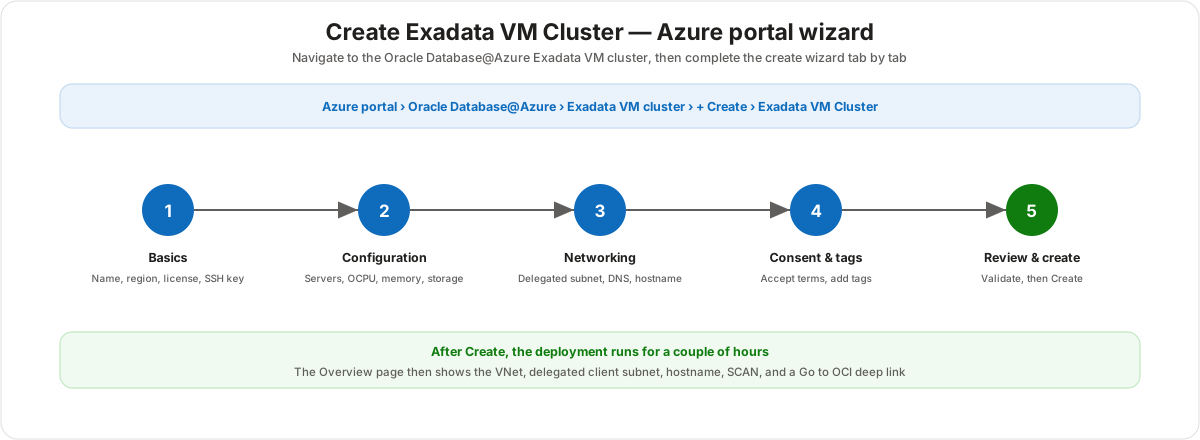
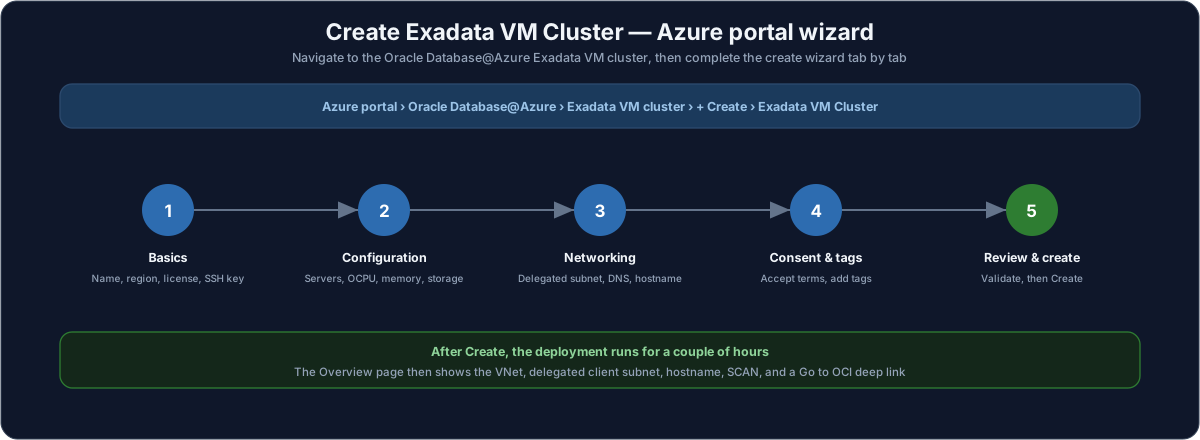
The Exadata VM Cluster is the second resource you stand up — the virtual machines that run on top of the Exadata Infrastructure and host the actual databases. It requires an existing infrastructure (the resource from the previous demo) and is itself a prerequisite for any database. You create it in the Azure portal from the Oracle Database@Azure blade, working through a create wizard with three input tabs — Basics, Configuration, and Networking — followed by Consent, Tags, and Review + create.
Where this starts
Provisioning begins in the Azure portal. From the Oracle Database@Azure blade you switch to the Exadata VM cluster tab, select + Create, and confirm you are in the Create Exadata VM Cluster flow. The wizard then walks the five steps below in order.
The create wizard, tab by tab
The wizard is the same shape as any other Azure resource creation: a few input tabs, a terms gate, optional tags, and a final validation. The three tabs that actually describe the cluster are Basics, Configuration, and Networking.
Step 1 — Basics
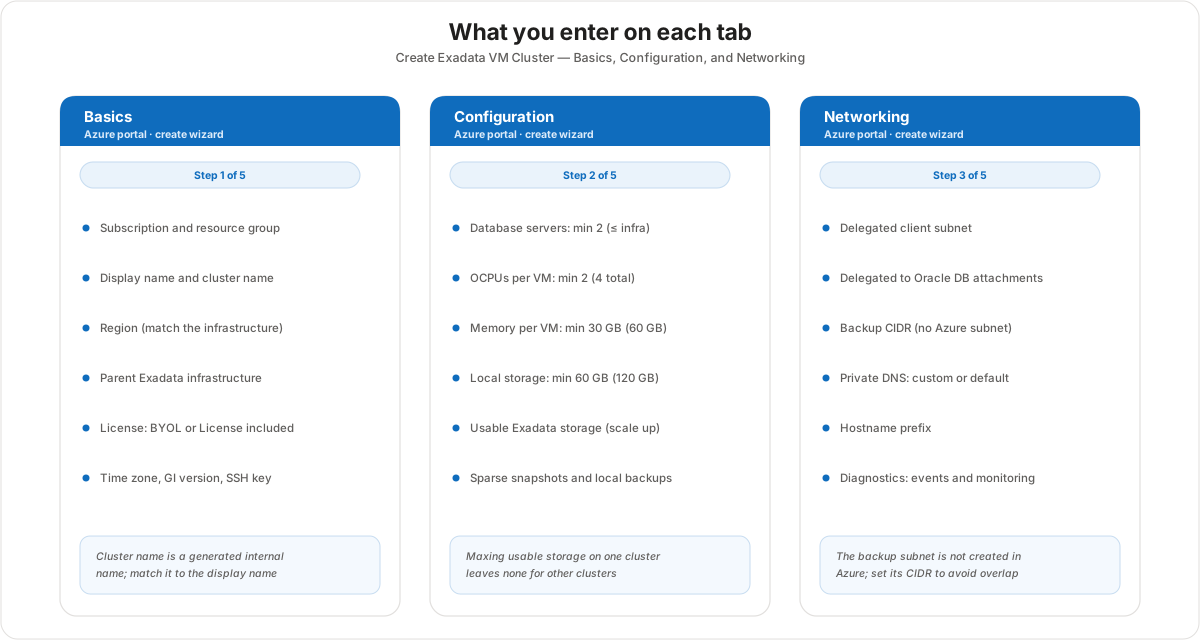
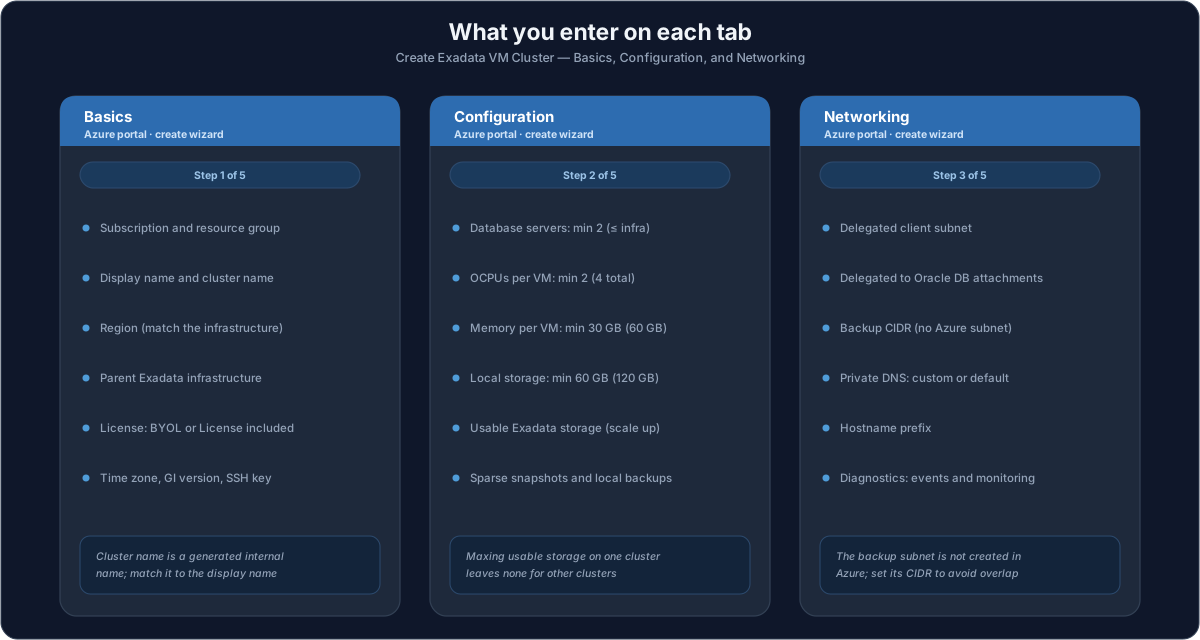
The Basics tab identifies the cluster and ties it to its parent infrastructure.
- Subscription — the subscription where the private offer was purchased.
- Resource group — an existing or new Azure resource group.
- Display name — a friendly name for the resource (for example Cluster VMC1).
- Region — it must match the region of the parent infrastructure, since Oracle Database@Azure regions are limited and the cluster runs on that infrastructure.
- Cluster name — a generated internal name; the guidance is to match it to the display name to avoid naming confusion later.
- Parent Exadata infrastructure — select the existing infrastructure (from the previous demo) that this cluster runs on.
- License type — License included or Bring your own license (BYOL); the choice affects billing.
- Time zone, Grid Infrastructure version, and SSH public key — the GI version limits which database versions the cluster supports; for the key you can generate a new key pair, use an existing key stored in Azure, or provide an existing public key.
Step 2 — Configuration
The Configuration tab is where you size the cluster, always within the limits of the parent infrastructure.
- Database servers — minimum 2, and you cannot exceed the count on the infrastructure. With a two-server infrastructure, the cluster uses both.
- OCPUs per VM — minimum 2 per VM. With one VM per database server on a two-node cluster, that is 4 OCPUs total — the minimum configuration.
- Memory per VM — minimum 30 GB per VM, so 60 GB total across two nodes.
- Local storage per VM — minimum 60 GB per VM, so 120 GB total.
- Usable Exadata storage — select the amount and scale up toward the maximum. Maxing it on one cluster leaves no usable storage for any other cluster on the same infrastructure.
- Sparse snapshots and Local backups on local storage — optional; either one changes the usable-storage ratio. The demo enables neither.
The takeaway: the totals (OCPU, memory, storage) are derived from the per-VM values and the node count, and everything is capped by the infrastructure.
Step 3 — Networking
The Networking tab connects the cluster into your Azure virtual network.
- Delegated client subnet — a subnet in your VNet that is delegated to "Oracle database network attachments". You set the delegation on the subnet itself (subnet → delegation → the Oracle Database service) before selecting it here.
- Backup CIDR — you provide a CIDR range for backups. The backup subnet is not created in Azure, but you still enter a CIDR so its address space does not overlap anything else.
- Private DNS — use a custom DNS domain, or the default created by the service (
oraclevcn.com). - Hostname prefix — forms the first portion of the cluster host name.
- Diagnostics collection — enable the diagnostic events, health monitoring, and incident logs that Oracle can use to track and resolve issues.
Step 4 — Consent and tags
- Consent — accept the general Oracle Database@Azure terms of service, privacy policy, and access permissions before you can continue.
- Tags — add Azure resource tags as usual. As with the infrastructure, these tags are not propagated into the OCI portal.
Step 5 — Review and create, then Overview
Select Review + create. The portal runs validation on your inputs, and once it passes you select Create. Provisioning the cluster is a long-running step — it takes a couple of hours.
Once the cluster exists, its Overview page summarizes the deployment: the virtual network, the delegated client subnet, the hostname, and the SCAN details. It also exposes a Go to OCI deep link that takes you to the OCI portal to start creating databases on the cluster.
Customer value
- The cluster is provisioned in the Azure portal alongside the infrastructure — one console for both foundational steps.
- Sizing is bounded by the parent infrastructure, so a cluster cannot request more servers, OCPU, memory, or storage than the hardware provides.
- The cluster attaches to the customer's own VNet through a delegated subnet, keeping database traffic on private Azure networking.
- The Overview page and the Go to OCI deep link give a clean hand-off from Azure provisioning to OCI database creation.
Risks and constraints to remember
- Infrastructure must already exist. The VM cluster cannot be created without a provisioned Exadata Infrastructure to assign as its parent.
- Region must match the infrastructure. Assign the cluster to the same region as its parent infrastructure.
- Counts are capped by the infrastructure. Database servers, OCPU, memory, and storage cannot exceed what the infrastructure provides; minimums are 2 servers, 2 OCPU/VM, 30 GB/VM, and 60 GB local/VM.
- Usable storage is shared. Maxing usable Exadata storage on one cluster leaves none for other clusters on the same infrastructure.
- The client subnet must be delegated. It has to be delegated to Oracle database network attachments before you can select it.
- The backup subnet is not created in Azure. You still set its CIDR so the backup range does not overlap other address space.
- Provisioning is slow. Expect the cluster to take a couple of hours to come up.
Terms to remember
- Exadata VM Cluster — the virtual machines that run on the infrastructure and host databases; the second resource you provision.
- Parent Exadata infrastructure — the existing infrastructure a cluster is assigned to and bounded by.
- Cluster name vs display name — the cluster name is a generated internal name; match it to the display name to avoid confusion.
- License included / BYOL — the two license types, chosen on Basics, which affect billing.
- OCPU per VM / total — the per-VM compute unit (minimum 2) and the derived total across the cluster's nodes.
- Delegated client subnet — a VNet subnet delegated to Oracle database network attachments that the cluster attaches to.
- Backup CIDR — a backup address range you specify; the subnet itself is not created in Azure.
- SCAN — the Single Client Access Name shown on the Overview page for connecting to the cluster.
- Go to OCI — the deep link from the cluster Overview into the OCI portal to create databases.
"With the Exadata Infrastructure in place, the next step is the VM Cluster — the virtual machines that actually run the databases. You build it in the same Azure portal: pick the subscription and a region that matches your infrastructure, point it at that parent infrastructure, choose your license type, and add an SSH key. Then you size it — at least two database servers and two OCPUs per VM, all capped by the hardware you already provisioned — and decide how much usable storage this cluster takes, knowing that maxing it leaves none for other clusters. On networking you attach it to a subnet you've delegated to Oracle, set a backup CIDR so nothing overlaps, and pick your DNS and hostname. Accept the terms, tag it, and hit Create. It takes a couple of hours, and when it's done the Overview shows your VNet, subnet, hostname, and SCAN — plus a Go to OCI link to start creating the databases."