11 · Demo — Provision Database
These are original revision notes for the database provisioning demo. They walk through creating the container and pluggable databases in our own words rather than reproducing the recording, and the portal field values shown are illustrative placeholders.
Core message
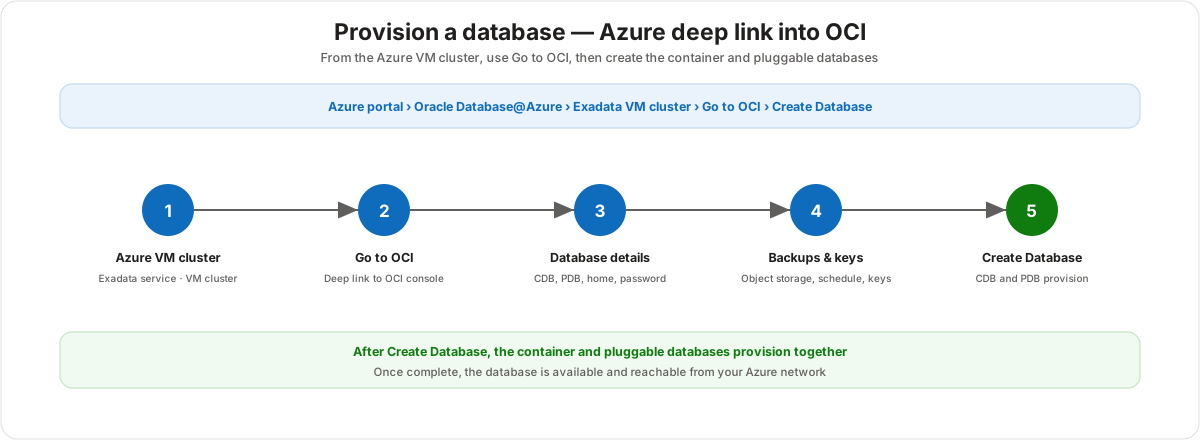
With the Exadata Infrastructure and the VM Cluster in place, the database is the third and final resource — and the one that actually holds data. It is not created in the Azure portal. Instead, from the VM cluster's Azure Overview page you follow the Go to OCI deep link into the Oracle Cloud Infrastructure (OCI) console, where the equivalent VM cluster page exposes a Create Database action. There you define a container database (CDB) and its first pluggable database (PDB), configure automatic backups to OCI object storage, set advanced options and key management, and select Create Database. The CDB and PDB provision together, and once complete the database is reachable from your Azure network.
Where this starts
Database creation begins where the previous demo ended: on the Exadata VM cluster resource in the Azure portal. You select Go to OCI to open the matching VM cluster page in the OCI console, then choose Create Database. The flow below walks the five steps in order.
The Create Database dialog, section by section
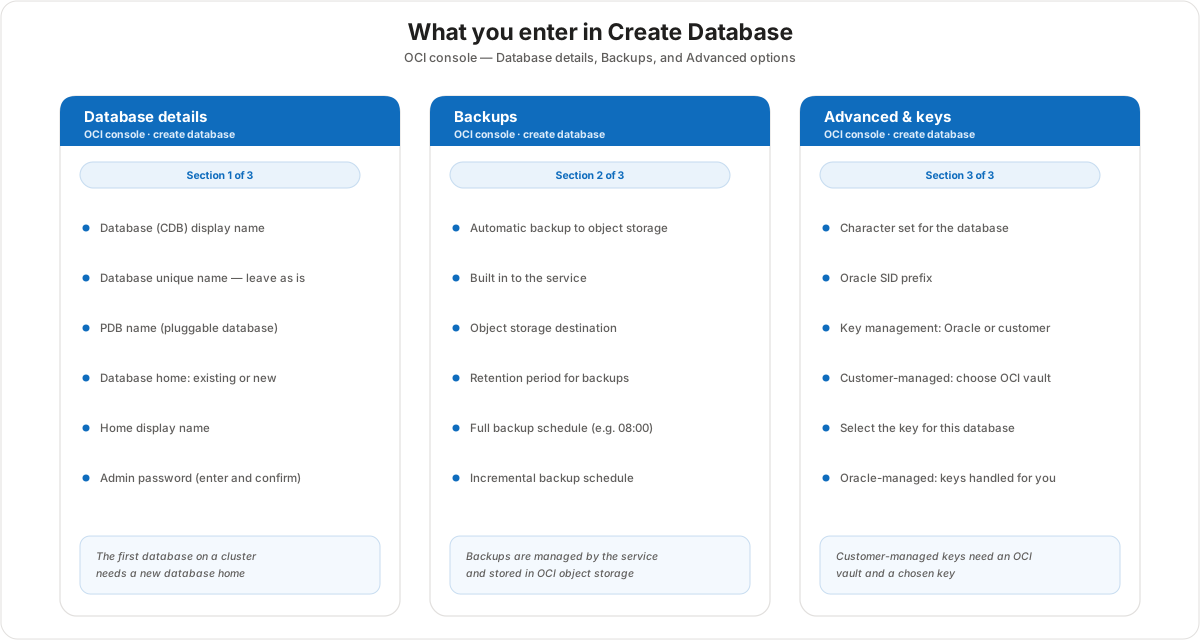
Unlike the infrastructure and the cluster — both created in the Azure portal — the database is created in the OCI console. The Create Database dialog collects its inputs across three sections: Database details, Backups, and Advanced options (including key management).
Database details
The first section names the databases and decides where they run.
- Database (CDB) display name — a friendly name for the container database (for example demo database one).
- Database unique name — a generated unique name; for the demo you leave it as is.
- PDB name — the name of the first pluggable database inside the CDB (for example PDB1). A CDB holds one or more PDBs, and you create the first one here.
- Database home — the Oracle home that runs the database. You can place the database in an existing home or create a new one. The first database on a cluster has no home yet, so you create a new database home.
- Home display name — a friendly name for that database home.
- Admin password — the administrator password for the database; you enter and confirm it.
Backups
The second section turns on protection. Automatic backup is built into the service — you do not stand up your own backup infrastructure.
- Automatic backup — enable backups to OCI object storage.
- Object storage destination — where the backups are written.
- Retention period — how long backups are kept.
- Full backup schedule — when the full backup runs (for example 08:00).
- Incremental backup schedule — when the incremental backups run between fulls.
The point to carry into a customer conversation: backups are managed by the service and stored in OCI object storage, so the customer configures a schedule and retention rather than building a backup pipeline.
Advanced options and keys
The third section covers database characteristics and encryption key management.
- Character set — the character set for the database.
- Oracle SID prefix — the system identifier prefix for the database instances.
- Key management — choose Oracle-managed or customer-managed encryption keys:
- Oracle-managed — Oracle handles the keys for you; nothing else to configure.
- Customer-managed — you choose an OCI vault and then select the specific key for this database, keeping control of the encryption key in your own vault.
Create Database, then availability
Once the three sections are filled in, you select Create Database. The container database and its pluggable database provision together as a single operation. When the operation completes, the database is available and reachable from your Azure network — the delegated subnet you configured on the VM cluster is what carries that connectivity.
Customer value
- The database inherits the Azure-to-OCI hand-off already established by the cluster — one Go to OCI deep link, no separate sign-in journey to find.
- Backups are built in. Automatic backup to OCI object storage is part of the service, so the customer sets a schedule and retention instead of building backup infrastructure.
- Key management is a choice. Customers who must hold their own keys use customer-managed keys in an OCI vault; everyone else gets Oracle-managed keys with no extra work.
- The finished database is reachable over private Azure networking, through the delegated subnet defined on the cluster.
Risks and constraints to remember
- The VM cluster must already exist. The database is created on a cluster; without a provisioned VM cluster there is nowhere to create it.
- The database is created in OCI, not Azure. You leave the Azure portal through Go to OCI; the Create Database dialog lives in the OCI console.
- The first database needs a new database home. On a fresh cluster there is no existing home, so you must create one.
- Set a real admin password. The admin password is entered and confirmed during creation and protects the database.
- Customer-managed keys require setup first. You need an OCI vault and a key in place before you can select customer-managed key management.
- CDB and PDB provision together. Creating the database stands up the container database and its first pluggable database in one operation, which takes time to complete.
Terms to remember
- Container Database (CDB) — the outer database that holds one or more pluggable databases; named by the database display name.
- Pluggable Database (PDB) — a database that runs inside a CDB; you create the first one during Create Database.
- Database home — the Oracle home that runs the database; created new for the first database on a cluster.
- Go to OCI — the deep link from the Azure VM cluster Overview into the OCI console where databases are created.
- Automatic backup — service-managed backup to OCI object storage, configured with a destination, retention, and schedule.
- Retention period — how long automatic backups are kept.
- Oracle-managed keys — encryption keys handled by Oracle, with nothing for you to configure.
- Customer-managed keys — encryption keys you control by choosing an OCI vault and a specific key.
- OCI vault — the key store you select when using customer-managed keys.
"With the infrastructure and the VM cluster built, the last step is the database itself — and that one lives in OCI, not the Azure portal. From the cluster's Overview page you click Go to OCI, then Create Database. You name the container database and its first pluggable database, and because this is the first database on the cluster you create a new database home and set an admin password. Backups are built in: you just point them at OCI object storage and set a retention period and a schedule — say a full backup at 8 a.m. and incrementals in between. Under advanced options you pick the character set and decide on keys — let Oracle manage them, or, if you need to hold your own, point at a key in your OCI vault. Hit Create Database, and the container and pluggable databases come up together. When it's done, the database is reachable straight from your Azure network over the subnet you delegated on the cluster."