9 · Demo — Provision Exadata Infrastructure
These are original revision notes for the Exadata Infrastructure provisioning demo. They walk through the create wizard in our own words rather than reproducing the recording, and the portal field values shown are illustrative placeholders.
Core message
The Exadata Infrastructure is the first resource you stand up — the physical database and storage servers that everything else runs on. It is a prerequisite for the Exadata VM Cluster and, in turn, for any databases. You create it in the Azure portal from the Oracle Database@Azure blade, working through a short create wizard with three input tabs — Basics, Configuration, and Maintenance — followed by Consent, Tags, and Review + create.
Where this starts
Provisioning begins in the Azure portal. From the Oracle Database@Azure blade you open the Exadata deployment, select + Create, and choose Exadata Infrastructure. The wizard then walks the five steps below in order.
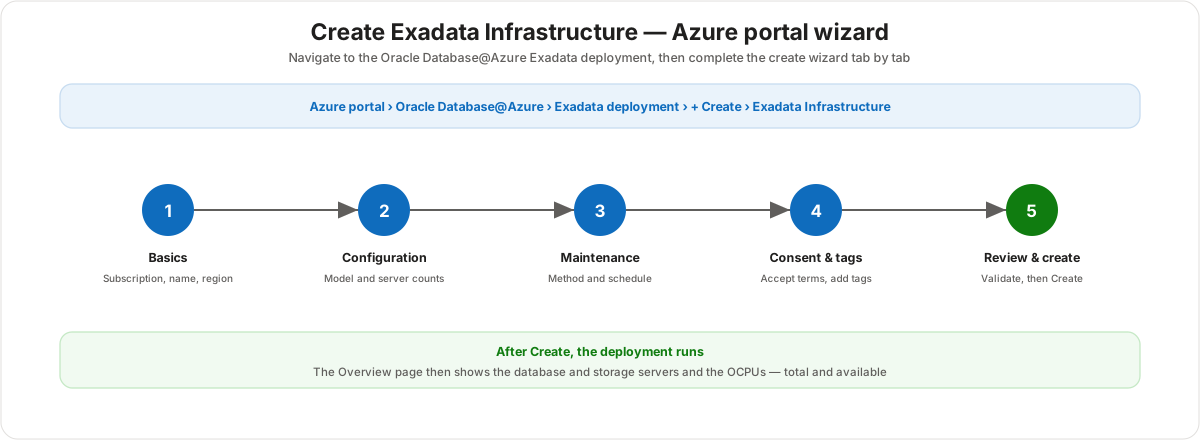
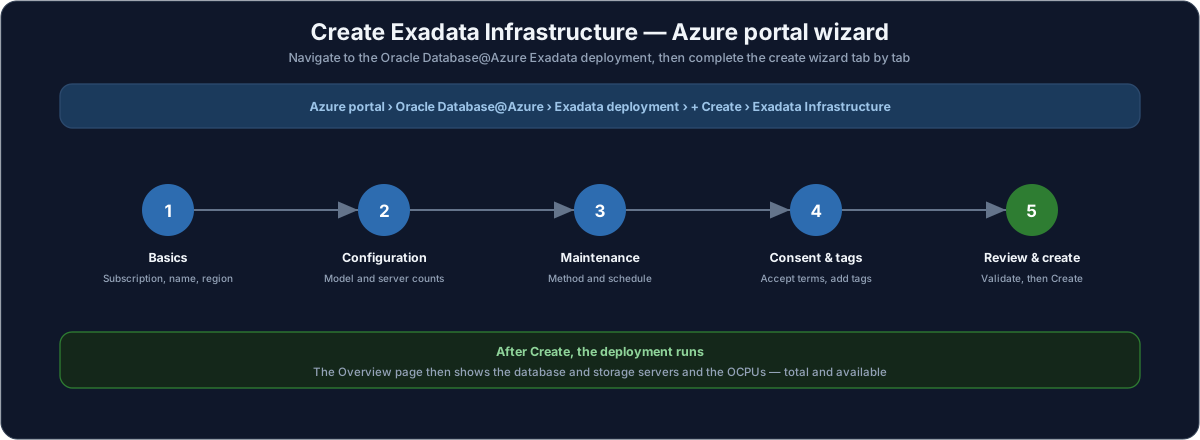
The create wizard, tab by tab
The wizard is the same shape as any other Azure resource creation: a few input tabs, a terms gate, optional tags, and a final validation. The three tabs that actually describe the machine are Basics, Configuration, and Maintenance.
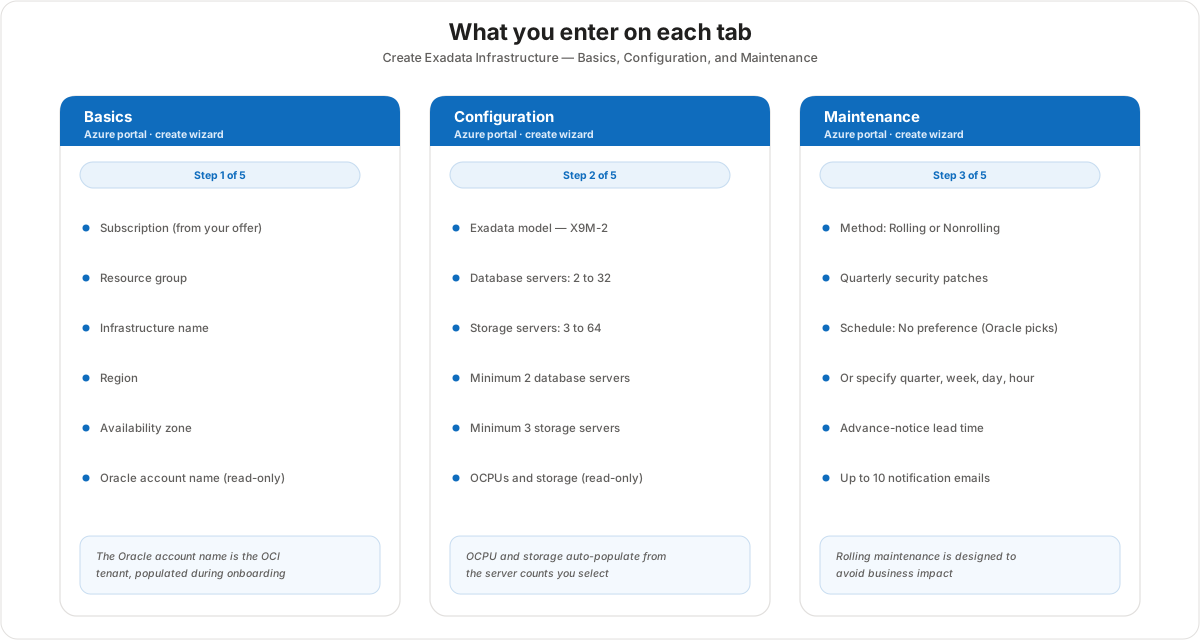
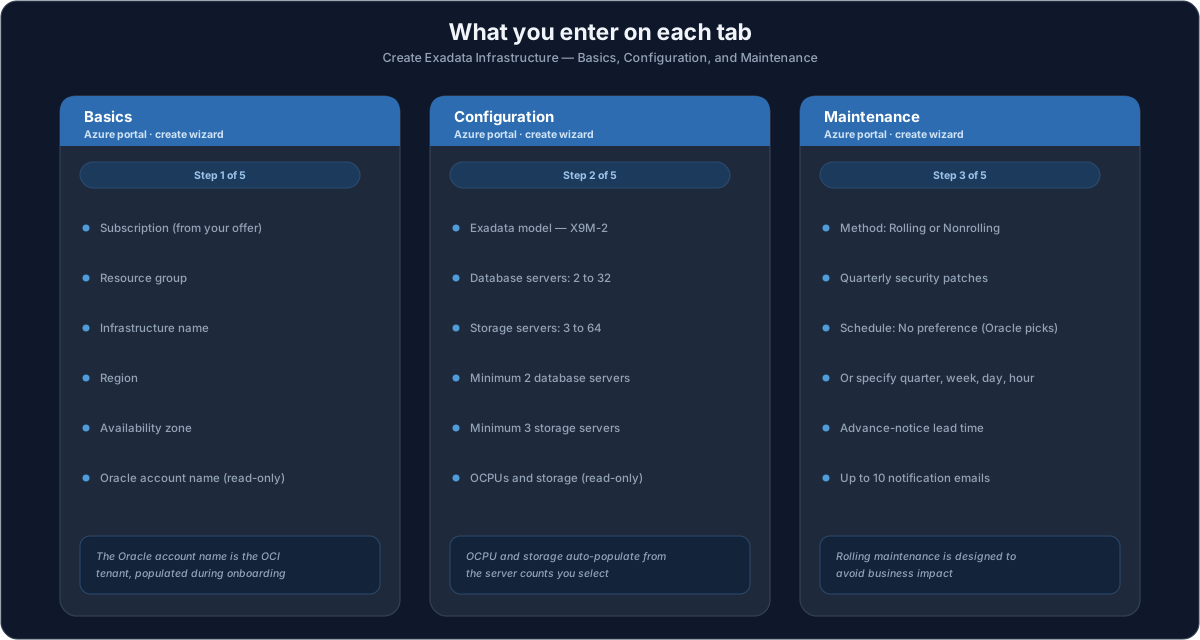
Step 1 — Basics
The Basics tab identifies where the infrastructure lives and who owns it.
- Subscription — auto-selected from the subscription tied to your purchased private offer.
- Resource group — an existing or new Azure resource group.
- Infrastructure name — a unique name for the resource.
- Region — chosen from the regions where Oracle Database@Azure is currently available (a limited set today).
- Availability zone — the zone within the region, for example Zone 1 or Zone 2.
- Oracle account name — a read-only field showing the OCI tenant, populated from onboarding. If it is blank, the OCI account link did not complete during onboarding.
Step 2 — Configuration
The Configuration tab is where you size the machine.
- Exadata model — the shape of the infrastructure (for example X9M-2).
- Database servers — selectable from 2 to 32; the minimum is 2.
- Storage servers — selectable from 3 to 64; the minimum is 3.
- OCPUs and Total storage — read-only fields that auto-populate as you raise the database-server and storage-server counts.
The takeaway: you do not set OCPU or storage directly here — you choose server counts, and the capacity figures follow.
Step 3 — Maintenance
The Maintenance tab controls how and when Oracle applies quarterly infrastructure patches.
- Method — Rolling or Non-rolling. Rolling patches one component at a time and is designed to avoid business impact.
- Schedule — leave it at No preference to let Oracle schedule the quarterly patches, or specify a custom schedule. A custom schedule lets you pick, per quarter, the month, then the week of the month, the day of the week, and the hour — for example a nighttime slot on the first Monday of a chosen month each quarter.
- Advance notice — a lead time before maintenance begins.
- Notifications — up to 10 contact names and email addresses to notify.
Step 4 — Consent and tags
- Consent — accept the general Oracle Database@Azure terms before you can continue.
- Tags — add Azure resource tags as usual. Note that these tags are not propagated into the OCI portal.
Step 5 — Review and create, then Overview
Select Review + create. The portal runs validation on your inputs, and once it passes you select Create. Provisioning the infrastructure is a long-running step — it sets up the physical servers — so it does not finish instantly.
Once an infrastructure exists, its Overview page summarizes the deployed hardware: the database servers, the storage servers, the total OCPUs, and the available OCPUs — the pool the VM cluster will later draw from.
Customer value
- Provisioning the foundational Exadata hardware happens in the Azure portal the platform team already uses — no separate Oracle console for this step.
- Sizing is driven by server counts, and the OCPU and storage figures derive automatically, which keeps the capacity decision simple and consistent.
- The maintenance schedule is explicit and customer-controlled, with rolling patching and notification contacts, so quarterly updates fit the customer's change windows.
Risks and constraints to remember
- Infrastructure is a prerequisite. It must exist before you can create the Exadata VM Cluster, and the VM cluster must exist before any databases.
- Provisioning is slow. Standing up the physical servers is a long-running operation — plan for it rather than expecting an instant resource.
- Region and zone choices are limited. Oracle Database@Azure is available in a constrained set of regions and zones today.
- Minimums apply. At least 2 database servers and 3 storage servers; OCPU and storage auto-populate from those counts and are not edited directly.
- Tags do not propagate. Azure tags applied here are not carried into the OCI portal.
- The Oracle account name is read-only. It comes from onboarding — a blank value signals an incomplete OCI account link.
Terms to remember
- Exadata Infrastructure — the first resource: the physical database and storage servers, provisioned in the Azure portal.
- Exadata model — the infrastructure shape (for example X9M-2) chosen on the Configuration tab.
- Database servers / Storage servers — the two counts you select (2–32 and 3–64) that drive capacity.
- OCPU — the Oracle compute unit; total and available OCPUs auto-populate and appear on the Overview page.
- Rolling / Non-rolling maintenance — the two methods for applying quarterly infrastructure patches.
- Maintenance schedule — No preference (Oracle schedules) or a custom quarter, week, day, and hour.
- Oracle account name — the read-only OCI tenant shown on Basics, populated from onboarding.
- Review + create — the final validation gate before the Create action starts provisioning.
"Standing up Oracle Database@Azure starts with the Exadata Infrastructure — the physical servers everything else runs on. You create it right in the Azure portal: pick the subscription from your offer, a region and availability zone, then choose the model and how many database and storage servers you want — at least two and three respectively — and the OCPU and storage figures fill in automatically. You set a maintenance method and schedule so quarterly patches land in your change window, accept the terms, add your tags, and hit Create. It takes a while because it's real hardware, and once it's done the Overview page shows your servers and your total and available OCPUs — the pool your VM cluster and databases will draw from next."