SQL Server on VM — Always On Availability Groups (Deep Dive)
This page covers the complete architecture of Always On AG on Azure VMs — every component, why it's needed, and how to configure it.
Architecture Overview
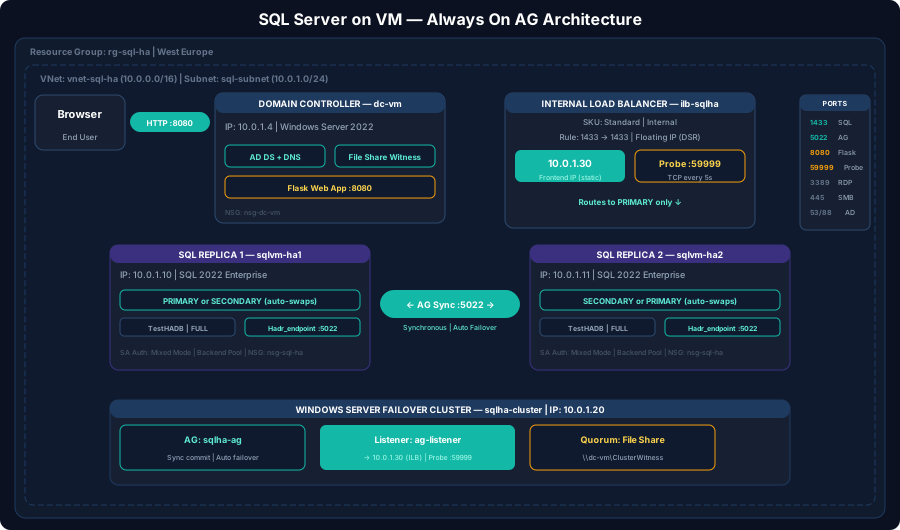
Component Breakdown
1. Active Directory Domain Services (AD DS)
Why needed: Windows Server Failover Clustering (WSFC) requires all nodes to be domain-joined. The cluster uses AD for authentication, computer objects, and the Cluster Name Object (CNO).
| Component | Purpose |
|---|---|
| Domain Controller VM | Provides AD DS + DNS |
| DNS | Critical for name resolution between cluster nodes |
| Domain Join | Both SQL VMs must be joined to the same domain |
| Service Accounts | SQL Server service runs under a domain account |
# Install AD DS on the Domain Controller VM
Install-WindowsFeature AD-Domain-Services -IncludeManagementTools

# Promote to domain controller
Install-ADDSForest `
  -DomainName "sqlha.local" `
  -DomainNetBIOSName "SQLHA" `
  -InstallDns `
  -SafeModeAdministratorPassword (ConvertTo-SecureString "<STRONG_PASSWORD>" -AsPlainText -Force) `
  -Force
In production, deploy two domain controllers in an Availability Set or across Availability Zones for AD redundancy. A single DC is a single point of failure for your entire AG.
2. Windows Server Failover Clustering (WSFC)
Why needed: Always On AG is built on top of WSFC. The cluster provides:
- Health monitoring — detects node failures
- Automatic failover — triggers AG failover when a node goes down
- Quorum voting — determines which nodes form the majority
# Install Failover Clustering feature on BOTH SQL VMs
Install-WindowsFeature Failover-Clustering -IncludeManagementTools

# Validate the cluster (run from either node)
Test-Cluster -Node SQL-VM1,SQL-VM2

# Create the cluster
New-Cluster -Name "YOURCLUSTER" `
  -Node SQL-VM1,SQL-VM2 `
  -StaticAddress 10.0.0.10 `
  -NoStorage
Always use -NoStorage when creating the cluster. Azure VMs don't share storage, and Azure doesn't support shared disks for traditional failover cluster instances (FCI) without Storage Spaces Direct or Azure Shared Disks.
3. Quorum & Cloud Witness
Why needed: Quorum prevents split-brain scenarios. It decides which partition of nodes can keep running if there's a network partition.
| Witness Type | When to Use |
|---|---|
| Cloud Witness ✅ | Recommended for Azure. Uses a blob in Azure Storage Account |
| File Share Witness | On-prem or hybrid setups with a file server |
| Disk Witness | Traditional on-prem clusters with shared storage |
| No Witness | Only with odd number of nodes (not recommended) |
# Configure Cloud Witness (recommended for Azure)
Set-ClusterQuorum -CloudWitness `
  -AccountName "yourstorageaccount" `
  -AccessKey "your-storage-key"
How Cloud Witness works:
- Each node sends heartbeats to the cluster
- Cloud Witness acts as the tie-breaking vote
- If the primary goes down, the secondary + Cloud Witness = majority → failover proceeds
- Without a witness in a 2-node cluster, neither node has majority → cluster goes offline
For DP-300, remember: A 2-node cluster without a witness cannot survive a single node failure because neither remaining node has majority. Cloud Witness is the recommended quorum witness in Azure — it's region-independent and doesn't need a separate VM.
4. Azure Internal Load Balancer (ILB)
This is the most critical Azure-specific component that differs from on-premises setup.
Why is a Load Balancer Needed?
On-premises, the AG Listener uses a virtual IP (VIP) registered in DNS via ARP (gratuitous ARP broadcast). In Azure, gratuitous ARP doesn't work because Azure networking doesn't allow VMs to claim arbitrary IPs.
The Azure ILB solves this by:
- Holding the Listener's virtual IP as its frontend IP
- Using a health probe on a custom port to detect which VM is the current primary
- Routing all traffic to only the active primary node
Load Balancer Configuration
# Create the internal load balancer
az network lb create \
  --resource-group rg-sqlha \
  --name ilb-sqlha \
  --sku Standard \
  --vnet-name vnet-sqlha \
  --subnet subnet-sql \
  --frontend-ip-name fe-ag-listener \
  --private-ip-address 10.0.0.100 \
  --backend-pool-name bp-sqlha

# Add both SQL VMs to the backend pool
az network nic ip-config address-pool add \
  --address-pool bp-sqlha \
  --lb-name ilb-sqlha \
  --resource-group rg-sqlha \
  --nic-name sql-vm1-nic \
  --ip-config-name ipconfig1

az network nic ip-config address-pool add \
  --address-pool bp-sqlha \
  --lb-name ilb-sqlha \
  --resource-group rg-sqlha \
  --nic-name sql-vm2-nic \
  --ip-config-name ipconfig1

# Create the health probe (THIS IS THE KEY!)
az network lb probe create \
  --resource-group rg-sqlha \
  --lb-name ilb-sqlha \
  --name probe-ag \
  --protocol tcp \
  --port 59999 \
  --interval 5 \
  --threshold 2

# Create the load balancing rule
az network lb rule create \
  --resource-group rg-sqlha \
  --lb-name ilb-sqlha \
  --name rule-ag-1433 \
  --protocol tcp \
  --frontend-port 1433 \
  --backend-port 1433 \
  --frontend-ip-name fe-ag-listener \
  --backend-pool-name bp-sqlha \
  --probe-name probe-ag \
  --idle-timeout 30 \
  --enable-floating-ip true
--enable-floating-ip true (Direct Server Return) is mandatory for AG Listeners. Without it, the load balancer NATs the traffic and SQL Server won't accept the connection because the destination IP doesn't match the Listener IP configured on the NIC.
Health Probe — How the LB Knows Which Node is Primary
The LB sends a TCP probe to port 59999 on both VMs. Only the current primary responds to this probe. This is configured via a cluster IP resource linked to the AG Listener:
# Run on the active cluster node after creating the AG
# This configures the probe port on the AG Listener cluster resource

$ClusterNetworkName = "Cluster Network 1"
$IPResourceName = "IP Address 10.0.0.100"   # The AG listener IP resource name
$ILBIP = "10.0.0.100"                       # Load balancer frontend IP
$ProbePort = 59999

Import-Module FailoverClusters

Get-ClusterResource $IPResourceName | Set-ClusterParameter `
  -Multiple @{
    "Address"   = "$ILBIP";
    "ProbePort" = $ProbePort;
    "SubnetMask"= "255.255.255.255";
    "Network"   = "$ClusterNetworkName";
    "EnableDhcp"= 0
  }

# Restart the cluster resource for changes to take effect
Stop-ClusterResource $IPResourceName
Start-ClusterResource $IPResourceName
How it works end-to-end:
| Step | What Happens |
|---|---|
| 1 | LB sends TCP SYN to port 59999 on both VMs every 5 seconds |
| 2 | Only the primary replica's cluster IP resource responds (SYN-ACK) |
| 3 | LB marks the responding node as "healthy" |
| 4 | All traffic on port 1433 → forwarded to the healthy (primary) node |
| 5 | On failover, the cluster moves the IP resource → new primary responds to probe |
| 6 | LB detects the change within ~10 seconds (2 failed probes) and reroutes |
Key exam points about the Load Balancer:
- It replaces the gratuitous ARP mechanism that doesn't work in Azure
- Floating IP (Direct Server Return) must be enabled
- The health probe port (59999) is configured on the cluster IP resource, not in SQL Server
- Standard SKU LB is required (not Basic) for Availability Zone support
5. Availability Set vs Availability Zones
| Availability Set | Availability Zones | |
|---|---|---|
| Protection | Hardware/rack failures | Entire datacenter failures |
| SLA | 99.95% | 99.99% |
| Latency | Sub-millisecond | ~1-2ms between zones |
| LB SKU | Basic or Standard | Standard only |
| Sync commit? | ✅ Yes (low latency) | ✅ Yes (still low enough) |
# Deploy VMs across Availability Zones
az vm create \
  --name SQL-VM1 \
  --resource-group rg-sqlha \
  --zone 1 \
  --image MicrosoftSQLServer:sql2022-ws2022:enterprise-gen2:latest \
  --size Standard_E4ds_v5 \
  --admin-username azureuser \
  --admin-password '<YOUR_SECURE_PASSWORD>'

az vm create \
  --name SQL-VM2 \
  --resource-group rg-sqlha \
  --zone 2 \
  --image MicrosoftSQLServer:sql2022-ws2022:enterprise-gen2:latest \
  --size Standard_E4ds_v5 \
  --admin-username azureuser \
  --admin-password '<YOUR_SECURE_PASSWORD>'
6. SQL Server Always On Configuration
-- Step 1: Enable Always On on both instances (requires restart)
-- Run via SQL Server Configuration Manager or PowerShell:
-- Enable-SqlAlwaysOn -ServerInstance SQL-VM1 -Force

-- Step 2: Create the database mirroring endpoint (BOTH nodes)
CREATE ENDPOINT [Hadr_endpoint]
  STATE = STARTED
  AS TCP (LISTENER_PORT = 5022)
  FOR DATABASE_MIRRORING (ROLE = ALL);

-- Step 3: Grant connect permission to the service account
GRANT CONNECT ON ENDPOINT::[Hadr_endpoint]
  TO [SQLHA\SqlService];

-- Step 4: Create the Availability Group (PRIMARY only)
CREATE AVAILABILITY GROUP [AG-Production]
WITH (
  AUTOMATED_BACKUP_PREFERENCE = SECONDARY,
  DB_FAILOVER = ON,
  DTC_SUPPORT = NONE
)
FOR DATABASE [ProductionDB], [ReportingDB]
REPLICA ON
  N'SQL-VM1' WITH (
    ENDPOINT_URL = N'TCP://SQL-VM1.sqlha.local:5022',
    AVAILABILITY_MODE = SYNCHRONOUS_COMMIT,
    FAILOVER_MODE = AUTOMATIC,
    SEEDING_MODE = AUTOMATIC,
    SECONDARY_ROLE (ALLOW_CONNECTIONS = READ_ONLY)
  ),
  N'SQL-VM2' WITH (
    ENDPOINT_URL = N'TCP://SQL-VM2.sqlha.local:5022',
    AVAILABILITY_MODE = SYNCHRONOUS_COMMIT,
    FAILOVER_MODE = AUTOMATIC,
    SEEDING_MODE = AUTOMATIC,
    SECONDARY_ROLE (ALLOW_CONNECTIONS = READ_ONLY)
  );

-- Step 5: Join secondary (run on SQL-VM2)
ALTER AVAILABILITY GROUP [AG-Production] JOIN;
ALTER AVAILABILITY GROUP [AG-Production]
  GRANT CREATE ANY DATABASE;  -- For automatic seeding

-- Step 6: Create the Listener
ALTER AVAILABILITY GROUP [AG-Production]
  ADD LISTENER N'ag-listener' (
    WITH IP ((N'10.0.0.100', N'255.255.255.255')),
    PORT = 1433
  );
7. Read-Only Routing
Route read-intent connections to the secondary replica automatically:
-- Configure read-only routing URLs
ALTER AVAILABILITY GROUP [AG-Production]
MODIFY REPLICA ON N'SQL-VM1' WITH (
  PRIMARY_ROLE (ALLOW_CONNECTIONS = READ_WRITE),
  SECONDARY_ROLE (
    ALLOW_CONNECTIONS = READ_ONLY,
    READ_ONLY_ROUTING_URL = N'TCP://SQL-VM1.sqlha.local:1433'
  )
);

ALTER AVAILABILITY GROUP [AG-Production]
MODIFY REPLICA ON N'SQL-VM2' WITH (
  PRIMARY_ROLE (ALLOW_CONNECTIONS = READ_WRITE),
  SECONDARY_ROLE (
    ALLOW_CONNECTIONS = READ_ONLY,
    READ_ONLY_ROUTING_URL = N'TCP://SQL-VM2.sqlha.local:1433'
  )
);

-- Set read-only routing list
ALTER AVAILABILITY GROUP [AG-Production]
MODIFY REPLICA ON N'SQL-VM1' WITH (
  PRIMARY_ROLE (READ_ONLY_ROUTING_LIST = (N'SQL-VM2'))
);

ALTER AVAILABILITY GROUP [AG-Production]
MODIFY REPLICA ON N'SQL-VM2' WITH (
  PRIMARY_ROLE (READ_ONLY_ROUTING_LIST = (N'SQL-VM1'))
);
Connection string for read-only routing:
Server=ag-listener;Database=ProductionDB;
ApplicationIntent=ReadOnly;MultiSubnetFailover=True
Always include MultiSubnetFailover=True in connection strings when using AG Listeners in Azure. This enables parallel connection attempts to all IPs, reducing failover reconnection time from ~30 seconds to ~1-2 seconds.
Deployment — phased order
The 16 steps below collapse into 5 phases. Order matters: skip ahead and the AG won't form, the listener won't answer, or failover hangs.
Do not create the AG Listener before the cluster IP and ILB are reachable. Listener creation succeeds but clients get timeouts because the probe never marks a node healthy. Validate the WSFC IP and probe port respond before the CREATE LISTENER step.
Complete Deployment Checklist
| # | Step | Details |
|---|---|---|
| 1 | Deploy VNet + Subnet | Ensure enough IP space for VMs + LB + Listener |
| 2 | Deploy Domain Controller | AD DS + DNS |
| 3 | Deploy SQL VMs | Same subnet, Availability Set or Zones |
| 4 | Domain-join SQL VMs | Configure DNS to point to DC |
| 5 | Install Failover Clustering | On both SQL VMs |
| 6 | Create WSFC Cluster | -NoStorage, static IP |
| 7 | Configure Cloud Witness | Storage Account for quorum |
| 8 | Enable Always On | SQL Server Configuration Manager → restart |
| 9 | Create DB Mirroring Endpoints | Port 5022 on both nodes |
| 10 | Create Availability Group | Sync commit + auto failover |
| 11 | Create AG Listener | Virtual IP matching LB frontend |
| 12 | Deploy Internal Load Balancer | Frontend IP = Listener IP |
| 13 | Configure Health Probe | Port 59999, TCP, linked to cluster IP |
| 14 | Configure LB Rule | Port 1433, floating IP enabled |
| 15 | Configure Read-Only Routing | Optional but recommended |
| 16 | Test Failover | Manual failover + verify probe works |
Network Ports Reference
| Port | Protocol | Purpose |
|---|---|---|
| 1433 | TCP | SQL Server client connections |
| 5022 | TCP | Database mirroring endpoint (AG sync) |
| 59999 | TCP | Load balancer health probe |
| 135 | TCP | RPC / Cluster communication |
| 3343 | UDP | Cluster heartbeat |
| 445 | TCP | SMB (if using file share witness) |
Anti-Patterns
- "Use a Basic SKU Load Balancer for the Listener." Basic ALB doesn't support Floating IP / Direct Server Return, which AG Listener requires. Standard SKU mandatory — the lab works on Basic in some old guides only because Basic has been soft-deprecated.
- "Skip the witness because we have 2 sync replicas." WSFC needs majority quorum. 2 nodes = vote split possible. Add a Cloud Witness (Azure Storage account) at minimum — free, region-redundant.
- "Use Cluster IP based Listener (no LB) like on-prem." Azure VNets don't allow gratuitous ARP — the floating cluster IP never converges. You need either ALB (classic) or Distributed Network Name (DNN) listener.
- "DNN listener works for everything." DNN has driver requirements (recent ODBC/JDBC, MultiSubnetFailover=True). Legacy clients fail silently to connect or sit on the wrong replica. Validate driver versions before swapping.
- "Async secondary in another region for cost — we'll use it for reads." Cross-region read traffic incurs egress charges and the readable secondary connection routing happens at the Listener, not the app side. Surprise bills + stale reads.
- "3-node WSFC across 3 zones with one async DR replica = same as 4 sync replicas." No — quorum is per-cluster, the DR replica is in a different WSFC (distributed AG) or has a
0node weight. Mis-set weights and a zone failure can take quorum below majority.
Floating IP must be enabled on the LB rule for AG Listener traffic. Forgetting this is the #1 reason "Listener resolves but connections time out." Symptom: SSMS connects to the Listener IP but the connection drops immediately.
Migration Between HA Architectures
| From → To | Path | Cost |
|---|---|---|
| Standalone SQL VM → 2-node AG | Add 2nd VM in another zone; configure WSFC + AG + ALB/DNN | New VM + ALB/DNN + cluster build |
| 2-node AG → 3-node AG (zone-redundant) | Add 3rd VM in 3rd zone; rebalance quorum | More compute; gain zone resilience |
| File Share Witness → Cloud Witness | Set-ClusterQuorum -CloudWitness referencing storage account | Free; cross-region resilience |
| ALB Listener → DNN Listener | Modify Listener type; verify client drivers | No new infra; faster failover; driver compatibility risk |
| Single-region AG → Distributed AG (multi-region) | Add 2nd cluster + 2nd AG in DR region; create DAG | Compute doubles; async log shipping; complex failover runbook |
| AG → Failover Cluster Instance (FCI) | Different paradigm: shared storage (Azure Shared Disks); rebuild | Lose per-DB granularity; gain instance-level failover |
| AG on VMs → SQL Managed Instance | MI Link or LRS or backup/restore | Drop cluster ownership; lose CmdExec/CLR features |
| Sync → Async replica | Modify replica properties | Reduces write latency on primary; non-zero RPO appears |
The expensive moves are adding cross-region async (egress + 2nd cluster build) and AG → FCI (architecture change + shared disk).
Real Scenarios
- 2-node AG, 99.99 % SLA, single region → 2 VMs in zones 1 & 2, Cloud Witness in zone 3, Standard ALB Listener with Floating IP. Driver: zone HA at min cost. Trade-off: regional outage = downtime.
- Cross-region DR for ERP → 3-node AG (2 sync zones + 1 async paired region), DNN Listener, Cloud Witness. Driver: regional resilience + fast intra-region failover. Trade-off: cross-region egress + DAG complexity at DR drill.
- Legacy client (.NET 4.5, no MultiSubnetFailover) → ALB Listener, not DNN. Driver: client driver doesn't support DNN. Trade-off: ALB rule is per-port, more config; failover ~30 s vs ~5 s on DNN.
- Read scale-out for reporting → AG with readable secondary + read-only routing list on Listener. Driver: offload reports without secondary endpoint awareness in app. Trade-off: license cost on the secondary if not Software Assurance.
- Customer wants "FCI like on-prem" → Azure Shared Disks (UltraSSD or PremiumV2) + WSFC + FCI. Driver: instance-level failover (system DBs included). Trade-off: shared disk SKU restrictions + region availability + no per-DB granularity.